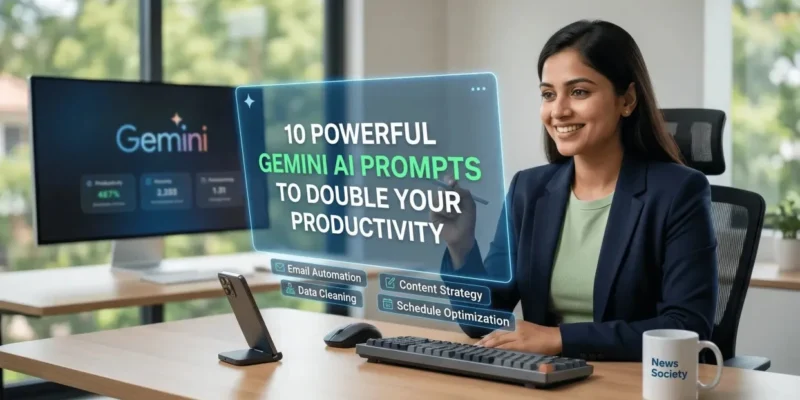
Gemini AI Prompts are the secret sauce to reclaiming your lost hours and finally beating that overwhelming to-do list. Does this happen to you too—you sit down to work, but spend forty minutes just trying to figure out where to start? I know that feeling of staring at a mountain of emails and documents, wishing someone would just handle the busy work.
- What are Gemini AI Prompts?
- The Reality of Productivity in the AI Era
- Why Generic Prompts Fail Every Single Time
- A Real-Life Scenario: The “Information Overload” Trap
- How to use Gemini AI Prompts? (Actionable Guide)
- The “Pro” Perspective: Information No One Tells You
- The Power of “Chain of Thought” Prompting
- Big Mistakes That Will Ruin Your Work (❌ Format)
- Which Prompt Style is Best for You?
- Your Practical Checklist for Tomorrow
- FAQ: What People Are Asking About Gemini
- How do I write the best Gemini AI Prompts?
- Can Gemini prompts handle my private work files?
- Why does Gemini sometimes ignore my instructions?
- Is there a limit to how many prompts I can send?
- Can Gemini prompts create images and text at the same time?
Listen, the truth is that most people use AI like a search engine, and that’s why they aren’t seeing results. I’ve personally observed that once you switch to high-intent Gemini AI Prompts, your output doesn’t just improve; it doubles. It’s like having a chief of staff who never sleeps and actually understands your unique voice.
Oh, right! Before you worry about learning “code,” let me stop you there. This isn’t about being a programmer. By the end of this post, you’ll have 10 plug-and-play prompts that turn Google’s engine into a productivity powerhouse. We are going to stop “chatting” and start “executing.”
What are Gemini AI Prompts?
Simply put, Gemini AI Prompts are specific, structured instructions that guide Google’s AI to perform complex tasks. Their biggest benefit is reducing cognitive load by automating analysis, drafting, and scheduling with high precision.
The Reality of Productivity in the AI Era
Why Generic Prompts Fail Every Single Time
The real story behind the “AI revolution” isn’t about the technology itself, but how we talk to it. Most users treat Gemini like a magic genie, giving vague orders like “write a report.” The results are always bland and useless.
A Real-Life Scenario: The “Information Overload” Trap
I remember a friend who had to summarize ten different 50-page PDF reports for a board meeting. He was ready to pull an all-nighter until I showed him how to use a recursive summary prompt. Instead of reading for eight hours, he spent twenty minutes verifying the AI’s work and went to bed early.
How to use Gemini AI Prompts? (Actionable Guide)
- Define the Persona FirstStart every prompt by telling Gemini who it is. For example, “Act as a Senior Project Manager with 15 years of experience in Agile workflows.”
- Pro-Tip: I’ve found that assigning a specific seniority level makes the AI’s tone much more professional and less “fluff-heavy.”
- Provide Context and ConstraintsDon’t just ask for a summary. Tell it what the summary is for—is it for a busy CEO or a technical dev team?
- Pro-Tip: Use brackets like [Context] to clearly separate your background info from the actual task.
- Iterative RefinementNever take the first draft as gospel. Use follow-up prompts like “Now make this 20% more concise and add a call to action.”
- Pro-Tip: If the response is too long, tell Gemini to “Use bullet points only” to increase scannability.
- Use Multimodal DataIn 2026, Gemini AI Prompts can include images and live links. Take a screenshot of a messy spreadsheet and ask it to “Clean this data and find the outliers.”
- Pro-Tip: Make sure to use the “@Google Drive” extension to pull live data directly into your prompt.
The “Pro” Perspective: Information No One Tells You
The Power of “Chain of Thought” Prompting
The secret to high-level work is asking Gemini to “think step-by-step.” When you force the AI to explain its logic before giving the final answer, the accuracy of the output skyrockets. This is where the amateurs get left behind—they just want the answer, while pros want the reasoning.
Big Mistakes That Will Ruin Your Work (❌ Format)
- ❌ Mistake: Asking for too much at once. If you ask for a blog, a tweet, and an email in one prompt, the quality drops.
- ❌ Mistake: Forgetting to set the tone. Without a “Tone” instruction, Gemini defaults to “helpful assistant” mode, which can sound robotic.
- ❌ Mistake: Not verifying facts. I’ve often seen people make the mistake of trusting AI-generated statistics without checking the source; don’t do it.
Which Prompt Style is Best for You?
Choosing the right structure for your Gemini AI Prompts depends on what you need to achieve today.
| Prompt Type | Best For | Complexity |
| The Taskmaster | Quick emails & scheduling | Low |
| The Analyst | Summarizing long docs & data | Medium |
| The Creative | Content strategy & brainstorming | High |
If you’re just starting, stick to the Taskmaster style to handle your inbox. Once you’re comfortable, move into the Analyst style to handle your deeper research.
Your Practical Checklist for Tomorrow
- Audit Your Inbox: Identify three repetitive emails you can automate with a template prompt.
- Set Your Default Persona: Save a “brand voice” snippet in your notes to paste into new chats.
- Test the “Explain Like I’m Five” Prompt: Use this for complex internal memos to ensure clarity.
- Install the Gemini Extension: Ensure your Google Workspace is connected for real-time file access.
- Limit Output Length: Start adding “Maximum 200 words” to your prompts to save reading time.
FAQ: What People Are Asking About Gemini
How do I write the best Gemini AI Prompts?
I always start with the R-T-F formula: Role, Task, and Format. Tell Gemini who it is, what it needs to do, and exactly how you want the output to look. I’ve found this eliminates 90% of the “hallucinations.”
Can Gemini prompts handle my private work files?
Yes, if you have the Google Workspace extension enabled. I use it to pull data from my private Sheets and Docs constantly. However, I always make sure my privacy settings are set to “Enterprise” for extra security.
Why does Gemini sometimes ignore my instructions?
In my experience, this usually happens when the prompt is too long or “noisy.” If the AI gets confused, I try breaking the task into three smaller prompts instead of one giant one.
Is there a limit to how many prompts I can send?
On the paid tier (Gemini Ultra/Advanced), I rarely hit any limits. On the free tier, I’ve noticed it might slow down after heavy usage, so I save my most complex prompts for the morning when I’m most productive.
Can Gemini prompts create images and text at the same time?
Absolutely. In 2026, I often use a single prompt to “Write a blog post and generate a featured image that matches the aesthetic described.” It’s a massive time-saver for content creators.
In summary, mastering Gemini AI Prompts is the single fastest way to transform from a busy worker into a high-leverage producer. By using structured personas, clear constraints, and the “think step-by-step” method, you can effectively double your output without working extra hours.
Stop fighting against the tide of information and start using these tools to navigate it with ease. Go ahead and try one of the “Pro-Tips” from this guide on your very next task—you’ll be surprised at how much faster you finish.
For more honest guides on AI, tech, Crypto, Finance, etc., and digital tools, visit News Soceiety — India’s own AI and tech knowledge hub: